Pages

Monday, April 28, 2014

New Google Tips - great videos for key features to each product


As they state: "A fun way of poking around. New cards coming all the time, come back often!"
This is indeed a very nice website, where you can learn more about some features by poking the cards.
Enjoy


How to get rid of unwanted mail messages in Google mail

What to do with unwanted mail (that isn't necessarily spam):
While you can't currently block messages from specific addresses or domains, you can set up a filter to send those unwanted messages directly to Trash.
To set up a filter, follow these steps:
• Click the down arrow in your search box at the top of the page. A window that allows you to specify your search criteria will appear.
• Enter your search criteria. If you want to check that your search worked correctly, click the search button. Clicking the down arrow again will bring    
          the window back with the same search criteria you entered.
• Click Create filter with this search at the bottom of the search window.
• Choose the action you'd like for these messages by checking the appropriate box. (In this case, I suggest checking "Delete it.")
• Click Create Filter.

Happy filtering . . .

New Statistics in EduBlogs

It gets better all the time! Since April 15 (that's where the statistics gathering started)
Edublogs shows - in an easy way - basic statistics about visitors to a/your blog.

If your students are Edubloggers, then you really should show them these slick visitor statistics.
Go to your dashboard, and select the statistics option (it's pretty new!)


It will show basic (clickable) info about your visitors in total:


And it provides info about views to single pages:


Great feature: Saving your Google Mail and documents from Google Drive

Good news!
It is now possible to save (a copy of) all your Chadwick Mail and Google drive data.
This is great, especially if you are leaving, and just want to keep a copy of all things. After downloading,
you will need to upload the data into a mail application on a laptop, and then you have the local
standard options (search, delete etc.). It can - if you choose - maintain your folder/label structure as well.
As you can see from the screenshot, you can download many other things as well.
Here are the steps involved:

Download a copy of your Gmail data (Mail, Drive data and even more):
Go to your Google account settings, 
find and select Data Tools and continue to select the data you wish to save-keep. 


Mail will be saved in the Mbox format, meaning you could open it easily with Apple Mail (on your laptop) or Outlook (for Windows).

Google Drive Data question:
What is the difference with copying the files from Google drive 
(when you sync your drive data from the cloud to your laptop, see screenshot below)?
The data download as described above, will give you readable documents on most platforms.
Meaning, Google Docs will be converted to docs you can read in MS Word, Pages or OpenOffice.

When you would copy the data from your synced Google drive, you maintain the Google document formats
(and that then again means, you can easily upload them again, into another account)

Bottom-line: An excellent new feature that Google offers here, and it might be a time saver for you.


Thursday, March 6, 2014

Easy blogging for kids with Easy Blogger Junior

❝ Easy Blogging for kids ❞ to Edublogs

Just discovered this - pretty amazing - App (for iPhone, or better iPad) that will make blogging for your young students very easy.
Instead of you doing the work, it's time to hand it over to the students themselves! 
From PreK to  . . . they will master this one with little to no extra help.
The App supports a shared iPad environment, an outstanding feature.
It was developed by 3 fathers/educators, and they have given it a lot of thought. 
The best is to watch the short video that explains all features, you can find it at their homepage:


It will allow your students to pick their name from a gallery, and then they will be guided in simple steps towards creating a blog post.
The App supports pictures, movies and text.


Ready to go for it?


Wednesday, March 5, 2014

Publish EduBlog posts to your blog directly from your personal email account - possible now!

 ❝ Post by Mail to Edublogs

One of those outstanding features of Posterous was the fact that you could blog via E-Mail.
Wordpress has those possibilities, but Edublogs (we use the Campus setup) was lacking this possibility so far.

It took a (long) while, but now you can post to Edublogs by sending an E-mail as well.
It requires the JetPack plugin activated.
After activation, you must connect (with any valid account) to Wordpress.com.
Then you can configure the settings. Posts will be formatted, and can contain image(s).

Read more about the mail settings and the plugin here: http://jetpack.me/support/post-by-email/


There are more options (other than Post by Mail) as you can see below. Connect to Facebook, 
post directly to Twitter etc. Good stuff out there!


You might want to share this good news with your teachers (and students)!
Here is a quick tip: have a QR-code on your desk, that will send a mail to your Edu-Blogs mail account!

Saturday, February 8, 2014

Fix a slow Mac computer - best approach

Help: My Mac is getting slower, has delays, and has often a spinning beach-ball!
Ok, it's time for safe boot and a repair permissions act!


Why/what is that: Safe Boot?
It is a useful tool for isolating problems & conflicts by putting OS X's startup volume in Safe mode. It will run your Mac with a minimum of extensions loaded, it performs basic checks and - best of all - it allows you to run Disk Utility in the most efficient way.

Why should I Repair Permissions?
File and folder permissions are crucial to your computer system. Well, one of the (few!) flaws of Unix-based systems is the fact that installing of software can mess-up those permissions, and that will result in your computer getting slower and slower. 
This is the reason, why people sometime suggest to perform a 'complete new fresh install' of your whole Mac. This would bring all permissions back to default, and all will be fast again. Now, that would be a lot of work too! Well, Disk utility in Safe Mode will do a whole lot of special repairs, in a lot less time - and it's of sure the BEST thing you should try (before doing a complete new installation . . .)!
It wil fix things a lot, and you might experience a new fast Mac afterwards! And just so you know: running Disk Utility in Safe mode is more effective than running it just from your Mac in normal operation. 

Ok, here are the steps:
1. For Safe Boot: restart your computer while holding the Shift key

2. Do not let go of the Shift key until your screen says Safe Boot

3. Once you see the screen with the words Safe Boot let go of the Shift key. Now login (as usual)

4. Open Disk Utility located in the Utility folder of your Applications folder

5. Select the main hard drive and have First Aid  selected in the Disk Utility window

6. Select Repair Disk Permissions (do not select 'verify')
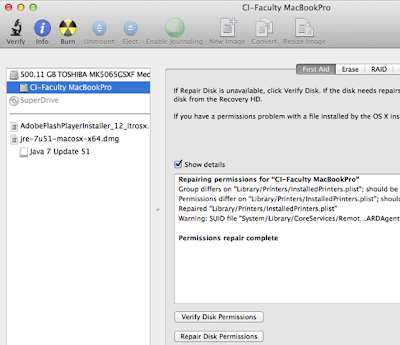


7. When Disk Utility is ready, you will see  "Permissions repair complete". It might take a long while!

After this, you should restart your computer! And, hopefully, things will be better, as repairing the Disk Permissions in Safe Boot will take care of many problems.

Of course, check how full your harddisk is! Keep a minimum of 20% free (no kidding!). Your OS needs that space for swapping files and caches around. Also, use 'Activity Monitor' (in Utilities) to monitor what is going on under the hood. Keep an eye on the CPU loads and discover Memory eaters.

Last tip: having more than 10 Tabs open in (any) browser, will cost a lot of memory being used. The - fabulous - extension 'OneTab' can help you there, just download and use, you will not regret. Browser's little helper on the way! http://www.one-tab.com