Pages

Wednesday, November 13, 2013

Important Google drive sharing tip

I have seen a few glitches happening with sharing of files and folders with Google Drive.
When somebody changes content in a Google Drive Folder that is shared with you, there is the danger that one deletes/dislocates content for others.

Keep in mind:
Moving a Whole Shared Folder to your "MyDrive" is ok to do
Moving (or deleting) single Folders/Files out of a Shared Folder is NOT ok to do.

I created a graphic below that explains it all in a visual way:


To eliminate possible errors, create Shared folders with View access rights only (as much as possible). 
If you share a folder with your team/students, you might want to consider following option:

Have the Main Folder View for all.
In that main Folder create 2 more folders, one with View and one with Edit access. That way, you keep the View-folder always save!

Good to know:
In case content was deleted, it still lives for a month in the bin (of the one who deleted the stuff).
If content IN a document was deleted, one can go back into the revisions -> and you can restore back in time.

Need a bit more visual help, a quick overview of Google drive perhaps?
This short video will give you some time-saving tips as well!

Want to learn how to setup Google Drive Sync (keep a synced backup of all your files in MyDrive on your own laptop)
This is a recommended step to do!

Sunday, October 27, 2013

How to set your Google Chrome to English - forever!

Many of you had/have problems (Chrome popping up in Korean, no matter what you try)
Here is how to set your Google Chrome to English (once and for all!)
It involves 5 steps:

1.
In your Browser, paste the following URL:     chrome://settings/searchEngines
That will open the preferences for search engines

2.
You will see a window that looks like this:

3.
You will need to ADD the English Google option in the lower Box ("Other search Engines")
You can do so in the very last line:

Copy paste (in this order) the following (exactly!) in the 3 boxes:
    Google in English         Google.com                https://www.google.com/webhp?source=ig&hl=en

4.
Now you will have to make this newly added Search Engine your DEFAULT one (so it sticks!)
Scroll in the list, and find the one you just added (look for Google English!)
And then make that the default by clicking the light blue setting when you have your mouse over the last part.

5.
When all went well, the top line in the Window should now look similar to this:


That would do the trick! Close your Browser windows, close Chrome and re-open.
Test it, and be happy!

Of course (!) you need to check the general language settings as well:
Click the advanced settings to see the options:


Check the Language settings, and make sure that English is the top
(and maybe only) choice:


That should do the trick! Make sure that you add the Google browser as
Only then you will be able to make it the default!

Happy surfing again!

Thursday, October 24, 2013

SketchFab - show your 3D model in real 3D on-line

Using Sketch? Want to show your design in 3D? Stunning 3D view? Rotate, zoom, the whole lot? Head over to https://sketchfab.com/ upload your object and try it out! The service has a free option (small ads, no big deal) and would be great to use for showing some objects, the results of a class project etc. They made a Video explaining the features. Here is an example of an embedded 3D model (uploaded and hosted on Sketchfab)   

Maison d'artiste from Klaas Nienhuis on Sketchfab.

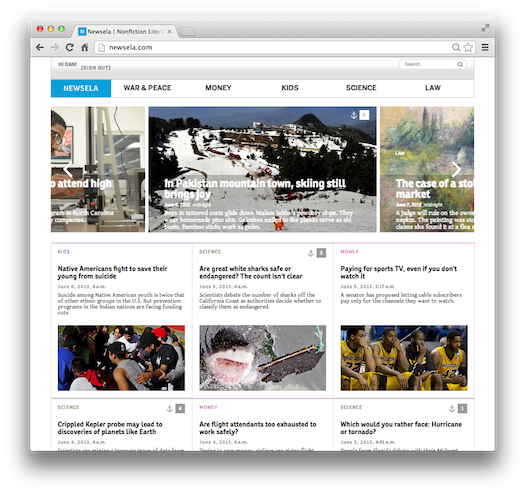
Newsela: a promising new startup -> supporting ESOL readers


Newsela is a new kid on the block (in Beta). It's free (so far). It allows teachers to create classes (upon signing up as a teacher one will get a "classcode"), and students can join the classes created.

Lessons are based on news articles and one can select different reading levels (lexile based).

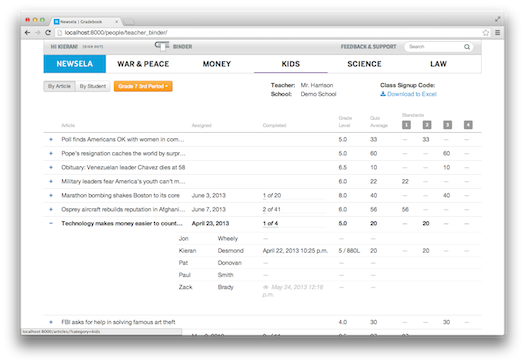
Quizzes can be attached to news articles, and there is a "gradebook" management tool available (linked to Common Core standards)


[caption id="" align="alignnone" width="525"] Class/Student management[/caption]

Best is to try this out, and see if you like it. This startup company has hit the press a lot already, and funding is secured. Free for now, that might change later (you know that pattern)

Monday, May 28, 2012

2 great collaboration and advanced Clicker Apps for the iPad

Many of you - who did not yet! - are using Socrative, the easy to use web solution
on www.socrative.com to create quick polls, quizzes for a class, where students can use 
any device (laptop, mobile, iPad etc.) to answer the questions.

If you want a bit more than just a quick polling, there are now 2 more - pretty advanced - solutions to go for,
NearPod and LectureTools. Both are free (as is Socrative), and allow to create (or use existing)
rich lesson content. Students can add notes and opinions, and you can test their skills.


NearPod (www.nearpod.com)
http://itunes.apple.com/us/app/nearpod-teacher/id523540409?mt=8
"Design enriched multimedia presentations and course materials with the Nearpod Content Tool – simply upload a pdf and add interactive features such as quizzes, polls, videos, drawing activities and more" 

Nearpod uses a 4 step tool set:


and
LectureTools
"LectureTools is a student response system that also allows students to take notes linked with the slides and videos presented in class, answer instructor generated questions and pose questions to the instructor. All notes, questions and activities are instantly synchronized with the LectureTools web application. It could be used as an advanced "clicker system" 


Somebody states: "iPads in class: now it's a no-brainer"
Well, we are getting there, no doubt. It is still a teacher who needs to create the content,
and those new tools have not developed any sharing facilities yet. Socrative allows
to share tests and quizzes, but there is no search function. Let's keep mentioning that
to those developers. Teachers want to collaborate too!

Marcel Ideler
Chadwick International
IT Integration


Thursday, May 24, 2012

3D design ideas

Using Macbooks and iPads, students at Kings Christian College in Australia (Grade12) did some terrific work: they planned parts of their school.
See the amazing results here at their Tech Blog Website;  http://kingscc.it/students-designing-classrooms
(and, while you are at it, they have more great examples of students work on-line. That's what you get at an established 1:1 Mac school, that is even being recognized as an Apple Distinguished School all-together!)

Here an overview of the Software they used:

Archicad
Free versions available for Students & Teachers


Artlantis Studio
3D rendering software (Mac, free for educators and students)


iVisit 3D
iPad 3D viewing of Artlantis objects

Alternatives:
It would be also possible to use Google Sketchup (Pro), as is has a plugin for the Artlantis rendering software.

And having discovered this: I was asked to help find possible Tech options for an Art project: creating a virtual museum, that can showcase students work from 2 different campuses (as it's the case here at Chadwick International). Way to go???

Tuesday, May 1, 2012

Getting crazy, or Setting your Browser language back to English!

Living abroad? Like me in Korea? Always get your Google home page in Korean, no matter what?
You might have set your Google location to, e.g. New York. You thought that should give you English, right.
Well, that might have worked. 
More often, it will not. In my case, using Google Chrome as my browser, the home page
keeps switching back to a Korean version, making me *%$*^%$*%^ one more time, after I scroll to
the bottom of my page, where I can switch to English (again)

Enough is enough!

Here is the solution:

You will have to change not so much your location (I tried, believe me), but you will need to change 
your default home page settings!


This is done under the Basic settings (preferences). If your default is Google.co.kr, then you know
who is causing you trouble!
You cannot easily change that default however. Scroll down the list, until you see Google.com, select
that one, and then (magic), you can click "make default"
Do so! Ok, one more step (who said it's easy?), and DELETE the Google.co.kr, that is still sitting there, 
ready to cause more trouble.

Now it should look like in the picture.
That will work, keep you sane, and bring back your love for Googling stuff.
Take my word for it!

Marcel